AI Studio
Use AI Studio in ACEIRT™ Fusion to generate apps, sites, agentic flows, and content with AI, then refine and manage what you build in a structured workspace.
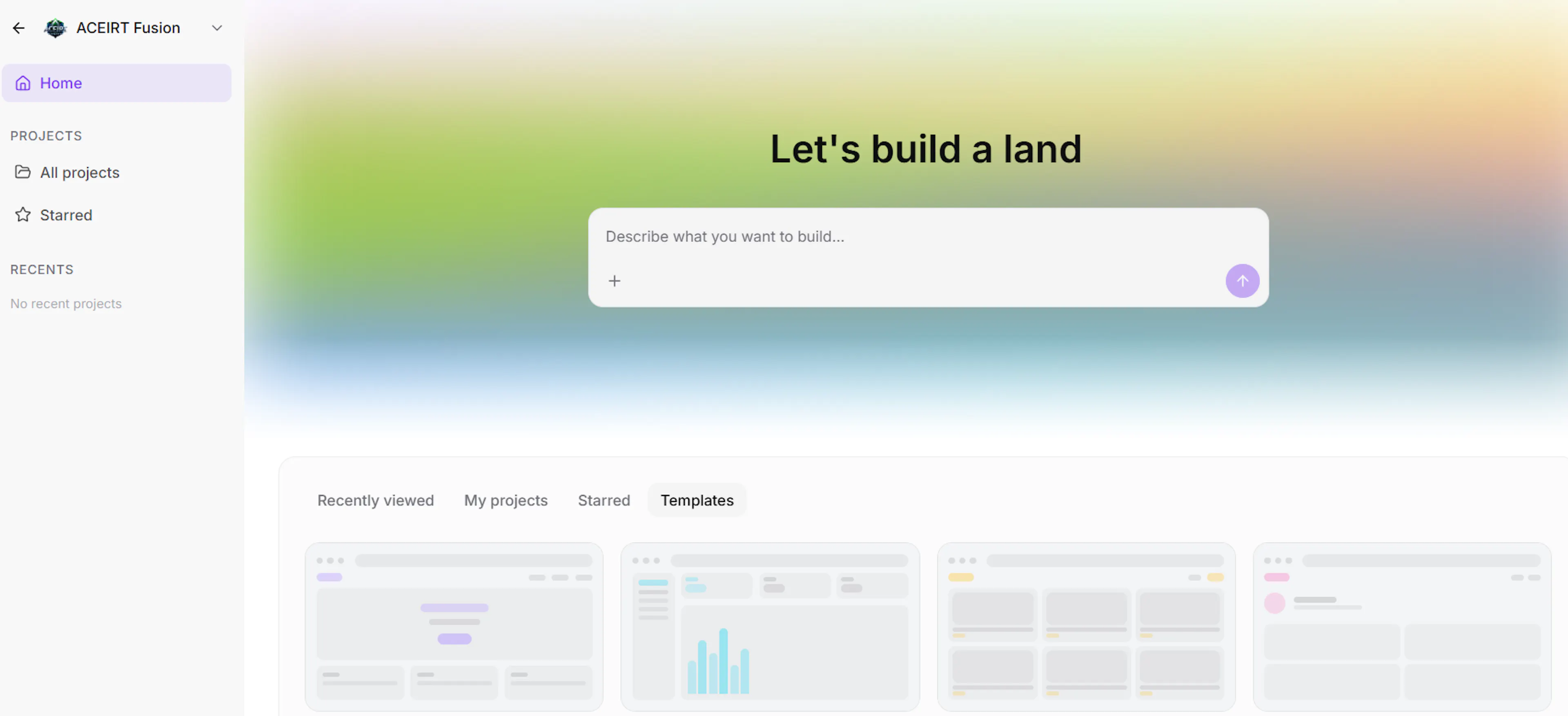
Overview
AI Studio is the area in ACEIRT™ Fusion where you turn ideas into working assets using AI. Use it to create draft apps, sites, flows, agentic experiences, and content that you can review, adjust, and deploy within your workspace.
AI Studio focuses on translating your natural-language goals into structured outputs, while still giving you control of what is created and how it is used. This includes Agent Studio, a visual canvas for building node-based agentic flows that connect a Start point to one or more nodes and end states.
AI Studio capabilities and interface may evolve over time. Expect small differences between what you see on screen and what is shown or described here.
What you can build
Use AI Studio to start from a prompt instead of from a blank page. Common output types include:
-
Agentic flows and agents: Node-based flows in Agent Studio that move from Start through decision and tool nodes to End, using variables, branching, and tools to handle complex interactions.
-
Apps and workflows: Multi-step flows that react to user input or data from your connected systems.
-
Sites and pages: Landing pages, content pages, and simple site structures you can refine in your existing tooling.
-
Content assets: Email drafts, support articles, FAQs, and other written content you can edit before sharing.
-
Structures and templates: Outlines, schemas, checklists, and other building blocks you can re-use across projects.
You always stay in control of what is kept, edited, or discarded before anything reaches your customers or internal users.
Common build ideas
Use these examples as starting points when you first explore AI Studio.
Onboarding assistant
Draft an interactive assistant that guides new customers through your core steps and answers common questions.
Product explainer site
Generate an outline and initial copy for a simple site that explains your product, then refine the sections you like.
Internal playbook
Turn scattered notes and processes into a structured internal guide that your team can follow and update.
How it works
AI Studio uses ACEIRT™ Fusion's AI models to interpret your instructions, then proposes a structured result you can review and refine. For agentic use cases, this includes Agent Studio, where AI helps you sketch agent flows on a canvas, connecting Start to End through AI and tool nodes that you can test and iterate visually.
At a high level, the flow looks like this:
-
You describe what you want in plain language, such as a goal, audience, and any constraints that matter.
-
AI Studio generates a draft that might include components, sections, steps, or agent nodes, depending on what you are building.
-
You review and adjust the draft, updating text, structure, and options to match your requirements.
-
You save or publish the result into your ACEIRT™ Fusion workspace, where you can manage access and keep iterating.
Think of AI Studio as an assistant that proposes a first version. Plan to review every output carefully before you use it in a live setting.
For a deeper look at the node-based canvas and agent behavior, see Build agents with Agent Studio.
Get started
Use this flow to explore AI Studio for the first time and produce a usable draft asset.
Open AI Studio from your workspace
From your ACEIRT™ Fusion workspace, go to the area labeled for AI or creation tools and open AI Studio. Make sure you are in the project or workspace where you want the new asset to live.
Your screen should show options to start a new build or continue from a recent one.
Choose what you want to create
Select a general type of output such as an app, a site or page, an agentic flow, or a content asset. If you are not sure which option fits, start with a content asset and refine from there.
The type you pick shapes how AI Studio structures the result, but you can still edit the format later.
Describe your goal in detail
In the prompt area, explain what you want AI Studio to build. Include:
-
The purpose or goal, such as educating, selling, or supporting.
-
Who the audience is and how familiar they are with your topic.
-
Any constraints, such as tone of voice, length, or required sections.
Use complete sentences instead of short phrases so the model has enough context to work with.
Generate and review the draft
Run the generation. AI Studio will return a draft structure and content based on your instructions.
Read through the result carefully. Adjust headlines, steps, and wording so they reflect your product, policies, and brand before you save anything.
Save and connect into your workflow
When you are satisfied with the draft, save it into your project or workspace. If needed, connect it to existing pages, flows, or internal documentation.
Confirm that team members who need to collaborate on this asset can access it through your ACEIRT™ Fusion workspace.
Tips for better results
Small changes to how you describe your request can significantly improve what AI Studio produces.
-
Be specific about the outcome. State what success looks like, such as "a 3-step flow that collects contact details and explains next steps."
-
Include your audience and context. Indicate whether you are targeting new leads, existing customers, or internal teams, and mention any industry constraints.
-
Provide examples when possible. Paste a short sample of content you like and explain what works about it, such as tone, structure, or length.
-
Set boundaries up front. Call out what to avoid, such as legal promises you cannot make, sensitive topics, or phrases that do not match your brand.
-
Iterate in small updates. If the first draft is close but not exact, update your prompt to correct specific issues instead of starting over from scratch.
Keep your initial request focused on one main goal. If you need several different assets, generate and refine them one at a time.
Privacy and permissions
Treat anything you share with AI Studio as potentially visible to ACEIRT™ Fusion systems that power AI features. Avoid entering data that is highly sensitive, regulated, or not intended to leave its original system unless your organization has explicitly approved it.
How ACEIRT™ Fusion handles data in AI Studio may depend on your plan, region, and organization settings. If you work with customer data or regulated information, coordinate with your security, legal, or compliance teams before using AI Studio with real records.
If you are unsure whether you are allowed to use certain data:
-
Prefer anonymized or synthetic examples.
-
Limit your prompts to descriptions instead of raw data.
-
Check any internal policies your organization has published about AI tools.
For access and sharing controls, refer to your workspace and team settings, or see Manage your team and permissions.
What’s next
Explore these AI Studio guides:
Set up your ACEIRT™ Fusion workspace
Make sure your workspace, projects, and team access are configured before you rely on AI-generated assets.
Create and manage projects
Organize AI Studio outputs into projects so you can track versions, collaborators, and where assets are used.
Build web pages
Turn your ideas into AI-generated web pages, then refine layouts and copy before publishing.
Build funnels
Design multi-step funnels that capture leads, nurture prospects, and hand off to your existing workflows.
Create apps
Use AI Studio to scaffold interactive apps and workflows that connect to your existing data and processes.
Prompting best practices
Learn how to write effective prompts so AI Studio generates assets that match your structure, tone, and goals.
Build agents with Agent Studio
Use the node-based Agent Studio canvas to design Start-to-End agentic flows with branching, tools, and test mode.